Vertech Editorial
The 2026 student tech stack that automates note-taking busywork — record, transcribe, prompt, and get clean study-ready notes in under 2 minutes.
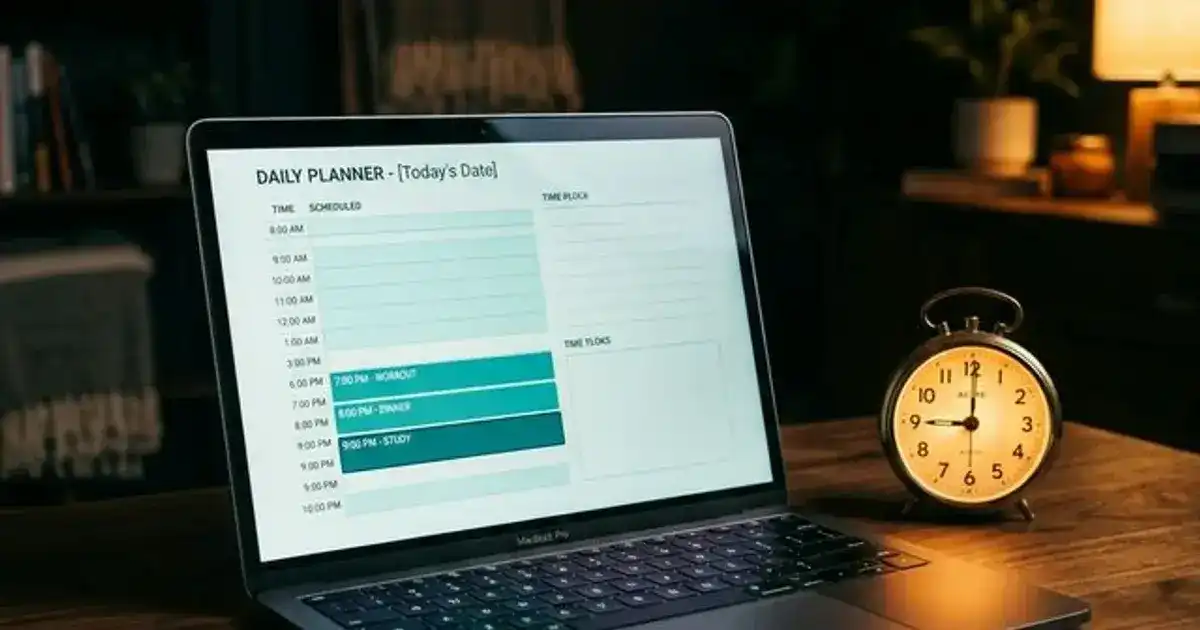
It's 10pm. You're staring at 14 pages of notes from today's lecture. Half of them don't make sense. You typed as fast as you could, but you were so busy transcribing that you didn't actually hear what the professor said. Now you're re-reading your own notes like they were written by a stranger.
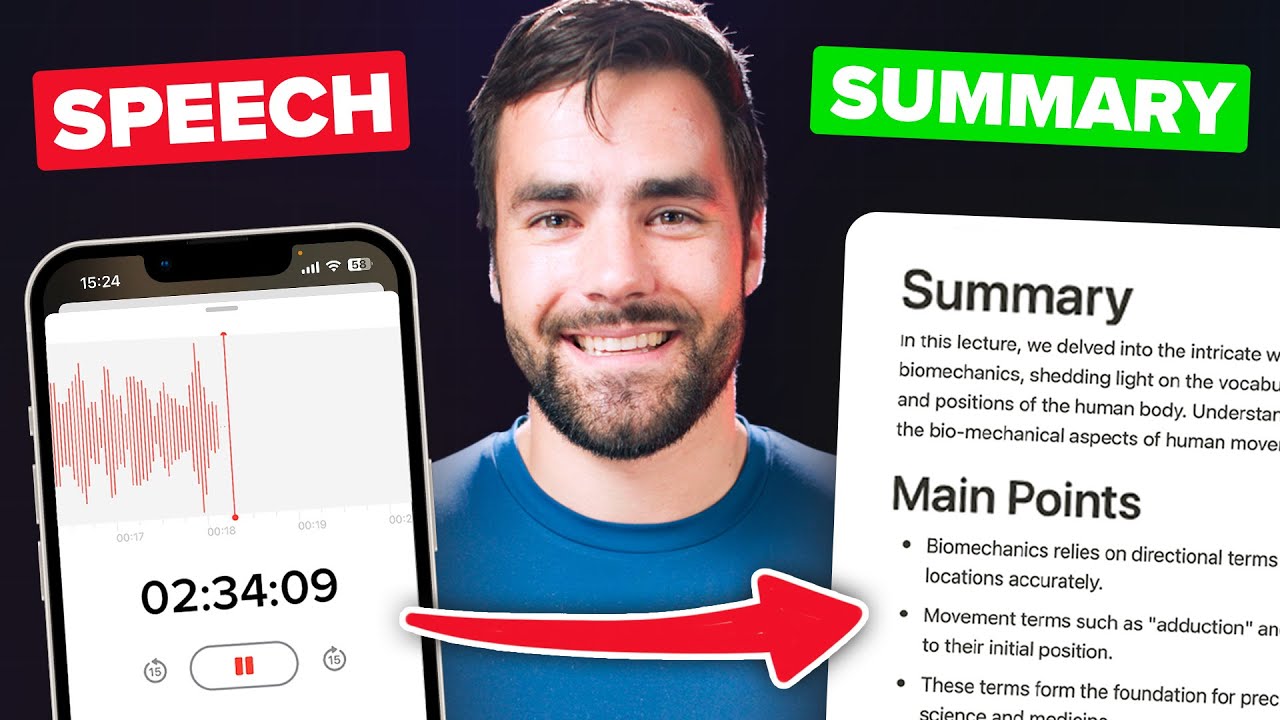
That's the old way. There's a better one. Record the lecture, paste the transcript into AI, and get clean structured notes back in 2 minutes. You stop typing during class altogether, so you actually follow the lecture instead of racing to copy it. This guide walks through exactly how to set it up, which free tools to use, and the specific prompts that turn messy transcripts into study-ready material.
Why You Should Stop Taking Notes in Class
Taking notes during a lecture splits your attention between listening and transcribing, which means you do both poorly. Your brain can only do one of those things well at once — and if you've ever looked back at your notes and realized half of them don't make sense, that's exactly why.
The problem isn't you. It's the method. Typing during lecture was designed for a world without recording tools. Now that every phone has a voice recorder and every AI can organize a transcript in 30 seconds, manual note-taking is the slowest option available.
Without This
You type as fast as you can during lecture, miss half of what the professor says, and leave class with messy notes you can barely read.
With This Method
You record, listen fully, and let AI organize the transcript into structured study notes you can actually use.
Instead, just record. Setting up takes about 1 minute — here are the tools that handle this cleanly:
- In-person lectures: Your phone's Voice Memos app (iOS, free) or Samsung Voice Recorder (Android, free) is the simplest option. For better transcription quality, Otter.ai (free — 300 minutes/month as of 2026) records and transcribes simultaneously.
- Online/recorded lectures: YouTube's auto-generated transcript (free, no account needed) gives you a full text file of everything said. Click the three dots below any video, select "Show transcript," and copy the text.
- Zoom/Teams classes: Both platforms offer built-in transcription (free with your university account). In Zoom, enable "Audio Transcript" in settings. In Teams, click "Start transcription" from the menu.
Done = you see a saved recording file on your phone and can play it back, or you have a transcript file you can copy-paste.
Once you stop splitting your attention, something interesting happens: you actually understand the lecture while it's happening. You catch the emphasis, the examples, the connections between ideas - things that never make it into rushed typed notes.
What to Do Instead of Typing
Just because you're not transcribing doesn't mean you sit there passively. Keep a notebook or blank document open and use it for annotation only - not transcription. Here's what's worth writing down during the lecture:
- Question marks next to anything confusing. These become your review targets later.
- Stars or exclamation points next to things the professor explicitly says will be on the exam or emphasizes with phrases like "this is important" or "make sure you understand this."
- Your own connections. If something reminds you of a concept from another class or from a previous lecture, jot that link down. The AI won't make those connections for you - it only has the transcript.
- Timestamps. If you hear something you want to revisit in detail, write the time. This makes it easy to jump to that section later in the recording or transcript.
This annotation-only approach means you leave every class with two things: a complete transcript (from the recording) and a short list of personal flags (from your notebook). When you process the transcript later, those flags tell you exactly where to focus your attention.
Key Takeaway
Recording lectures and annotating instead of transcribing produces better comprehension and a complete record to process later.
Always make sure you have permission to record your professor's lectures. Some universities have strict policies against unapproved recording. If actual audio recording is banned, simply dictate a "brain dump" into a voice memo app immediately after the lecture ends while the concepts are fresh. This 5-minute post-lecture dump captures 80% of what matters.
How to Turn a Lecture Transcript Into Study Notes With AI
Paste the raw transcript into ChatGPT, Claude, or Gemini (free tier works for all three) with a structured prompt, and the AI converts it into organized study notes with headers, bolded terms, and extracted action items in about 30 seconds. A year ago you'd have to read through the whole thing and pull out what mattered manually — now the AI does that formatting work for you.
The key is how you prompt it. Don't just type "summarize this." A vague command gets a vague result - you'll get a few generic sentences and miss everything that actually matters, like definitions, formulas, and anything the professor emphasized. You need to tell the AI exactly what format you want.
The Right Way to Process a Transcript
Specify Structure
Tell the AI explicitly to format the notes with H2 and H3 headers, bullet points, and bolded terminology. This makes the output immediately scannable.
Extract Action Items
Command the AI to output a separate section at the bottom for formulas, dates, upcoming assignments, and anything the professor said will be on the exam.
Demand Clarity
Instruct it to rewrite overly complex academic jargon into clear, plain English. Your future self reviewing these notes at 11pm will thank you.
Here's a prompt you can copy and paste directly into ChatGPT (free), Claude (free), or Gemini (free):
Copy this prompt "Here is a transcript from my [subject] lecture. Turn it into clean, organized study notes using this format: (1) Use H2 headers for each major topic. (2) Use bullet points for key facts, definitions, and examples. (3) Bold all important terminology. (4) Simplify complex jargon into plain English. (5) Add a separate 'Action Items' section at the end listing any assignments, deadlines, formulas, or exam topics mentioned. Do not add information that wasn't in the transcript."
Common Mistakes When Processing Transcripts
Even with a good prompt, there are a few things that trip students up when they first start using this workflow:
- Not reading the output critically. AI is great at organizing, but it sometimes merges two distinct concepts into one bullet point, or it drops a detail that seemed minor but is actually testable. Always read through the notes once and compare against your in-class annotations.
- Using "summarize" instead of "organize." A summary compresses. Organization preserves. You want the AI to restructure the information, not shrink it. The prompt above is designed for organizing - don't swap it out for a summary command.
- Pasting a transcript without cleaning it first. If the transcript has speaker labels, timestamps, or repeated filler words, strip those before pasting. The cleaner the input, the cleaner the output. A quick find-and-replace for "um," "uh," and "you know" takes 30 seconds and noticeably improves the result.
- Stopping at one pass. The first AI output is a draft, not a finished product. After you get the organized notes, you can run a second prompt: "Now turn these notes into 10 quiz questions with answers." That second pass is where the real studying happens.
Which AI Handles Transcripts Best?
All three major AIs work well, but they have different strengths for this specific task:
| Feature | ChatGPT | Gemini | Claude ✓ |
|---|---|---|---|
| Context window | 128K tokens | 1M tokens | 1M tokens |
| Best for | Polished formatting, single lectures | Google ecosystem, YouTube transcripts | Long transcripts, technical accuracy |
| Free tier | Handles most 50-min lectures | Integrated with Google Docs | Handles full semesters in one conversation |
For a deeper comparison of how each AI handles study tasks, check out our ChatGPT vs Claude vs Gemini for studying breakdown.
If your transcript exceeds the free tier limit, split it into two halves and process each separately — the output quality stays the same.
Tired of writing the same prompt every lecture?
The Notes Organizer gives you structured study notes in one paste — no prompt engineering required. Works with ChatGPT, Claude, and Gemini.
Get the Notes Organizer →2,400+ students · Free to start · Free tier available
Why AI Notes Don't Work Without Active Review
There's a name for this whole workflow: the Record-Process-Test Loop. Record the lecture. Process the transcript with AI. Test yourself on the output. Three steps, repeated every class. That's it.
The third step — the test — is where most students stop. They get their clean AI notes and think they're done. They're not. AI-generated notes become effective study material only when you actively test yourself on them. Without this step, you have organized text but no actual learning.
Without This
You read through your polished AI notes and feel confident. Then the exam arrives and you can't recall any of it — recognition felt like knowledge, but it wasn't.
With This Method
You close the notes and test yourself from memory. 15 minutes of active recall locks the material in place and shows you exactly what you don't know yet.
The problem is that organizing is not the same as studying.
Active recall is a study technique where you retrieve information from memory without looking at your notes. It is the single most effective method for converting organized notes into exam-ready knowledge. Recognition (seeing familiar information) feels like knowledge but it's not — recall is what gets tested on exams.
Here's what to do after your AI generates the notes:
- Read through the AI output once and fix anything it got wrong (~5 minutes). AI misinterprets technical terms or combines separate concepts in roughly 1 out of every 5 outputs.
- Add your own annotations (~3 minutes). Write questions in the margins, star the topics the professor emphasized, and flag anything you didn't fully understand during the lecture.
- Close the notes and test yourself (~5 minutes). Try to write down the 5 most important points from memory. If you can't, you know exactly where to focus your study time.
- Generate quiz questions (~2 minutes). Paste the cleaned-up notes back into the AI (same free tier) and ask it to quiz you. This turns passive notes into an active study tool.
This review-and-test step takes about 15 minutes, and it's the difference between notes that sit in a folder and knowledge that actually sticks. If you want to learn more about using AI for active studying (not just note organization), we have a full guide on how to use ChatGPT to study effectively.
Key Takeaway
Active recall — testing yourself from memory — converts organized AI notes into exam-ready knowledge that passive review cannot.
Here's a second prompt you can use for the quiz generation step:
Copy this prompt — quiz generation "Based on the notes above, create 10 exam-style questions. Mix the format: include 4 multiple choice, 3 short answer, and 3 true/false. For each question, provide the correct answer and a one-sentence explanation of why it's correct. Focus on the concepts that would most likely appear on a midterm."
How to Build a Weekly Note-Taking System That Compounds
A weekly note-taking system compounds by turning each lecture's AI-processed notes into a searchable, quiz-ready archive that grows more valuable every week. The workflow above handles a single lecture, but the real power shows up when you run it consistently across an entire semester.
Without This
Transcripts pile up in a folder. A week before the midterm you panic-process 12 lectures at once and can't remember which concepts came from where.
With This Method
You process each lecture within 24 hours. By week 12 you have a Quiz Bank with 100+ questions generated from your actual class content — a custom practice exam no textbook can match.
Here's a simple folder structure that keeps everything accessible (~5 minutes, one-time setup):
- One folder per course. Inside each course folder, name your files by date and topic: "2026-03-07 - Cellular Respiration" or "Week 8 - Market Equilibrium." This makes everything searchable later.
- A "Raw Transcripts" subfolder. Keep the raw, unprocessed transcripts as a backup. If your AI-processed notes miss something, you can always go back to the source.
- A "Quiz Bank" document per course. Every time you generate quiz questions from your notes, append them to this running document. By midterm season, you'll have a custom practice exam built from your actual lectures.
This works in Google Docs (free), Notion (free), Obsidian (free), or even plain text files in a folder on your desktop. The tool matters less than the consistency. Students who process their lecture transcripts within 24 hours of the class retain significantly more than those who let transcripts pile up and batch-process them before an exam.
Done = you have three folders visible on your screen (one per course), each with a Raw Transcripts subfolder and a Quiz Bank document. Total setup: 5 minutes.
The goal is a system where, by week 12, you can open your Quiz Bank document and run through 100+ questions generated from every lecture you attended. That's an exam prep resource no textbook can match, because it's built from your actual class content.
Key Takeaway
Processing lecture transcripts within 24 hours produces significantly better retention than batch-processing before exams.
Where AI Note-Taking Falls Short (And How to Catch It)
AI note-taking fails in four predictable ways: merging distinct concepts, dropping low-emphasis details, misreading technical jargon, and inventing structure the professor never used. Knowing these failure modes lets you catch errors before they become wrong answers on an exam.
Here are the most common places where AI-generated notes go sideways:
- Merging distinct concepts. AI models sometimes combine two related but different ideas into one bullet point. If your professor distinguishes between mitosis and meiosis, but the AI merges them under "cell division," you'll miss a testable distinction. Always cross-reference the AI output against your own in-class annotations.
- Dropping low-emphasis details. If the professor mentioned something once in passing — a date, a formula variant, an exception to a rule — the AI may decide it's not important enough to include. These "minor" details are exactly what shows up as tricky exam questions.
- Misreading technical jargon. Transcription tools mishear specialized vocabulary constantly. "Krebs cycle" becomes "crabs cycle." "Eigenvalue" becomes "I can value." If you're in a STEM course, scan the transcript for garbled terms before you paste it into the AI (~2 minutes for a 50-minute lecture) — a quick find-and-replace saves a lot of confusion downstream.
- Inventing structure that wasn't there. Some AI outputs look beautifully organized but impose a hierarchy that doesn't match how the professor actually presented the material. If the AI creates a numbered list implying a sequence, but the original lecture presented those items as unordered examples, your study notes now carry a false signal.
The fix for all of these is the same: never treat the AI output as final. Treat it as a rough draft that handles 80% of the formatting work. Your job is the remaining 20% — verifying accuracy, catching dropped details, and adding the personal context that only you have from being in the room.
Students who skip this verification step don't just lose accuracy — they lose the learning benefit of engaging with the material. The 10 minutes you spend reading critically and correcting the AI's output is itself a form of active review, which is one of the most effective study techniques there is.
Key Takeaway
AI handles 80% of note formatting; the 20% you verify manually is where real learning and error-catching happen.
The Fastest Way to Process Lecture Notes With AI
A saved, reusable prompt template eliminates the biggest friction point in AI note-taking: writing a detailed prompt from scratch every time. Without a template, students default to "just summarize this" after two or three uses, which produces vague, unstudyable output.
The fix is to have the prompt ready to go. Save it in your Notes app, pin it in a Google Doc, or - if you want the formatting and extraction rules pre-built - use a prompt template that's been specifically designed for this workflow.
At Vertech Academy, our Notes Organizer prompt has all the structure rules baked in: headers, bullet points, bolded terminology, action item extraction, and jargon simplification. Paste the transcript, hit enter, and get structured study notes without reinventing the setup every single time — students save 40+ minutes per lecture compared to formatting notes manually. If you want to take the prompt engineering further, check out our guide on prompt engineering for students.
You now know something most students don't. While everyone else types furiously during lecture, misses half the content, and re-reads their messy notes the night before the exam — you record, process, and test. Three steps. 20 minutes. That's the whole difference.
Your classmates rewrite the same prompt every lecture. You won't.
One paste. Structured notes back in 30 seconds. The Notes Organizer has every formatting rule and action item extractor pre-built — just add your transcript.
Get the Notes Organizer →2,400+ students · Free to start · Works with any AI
Try This Tonight
Open your phone's Voice Memos app (iOS) or Samsung Voice Recorder (Android). Test-record yourself reading one paragraph out loud. Stop the recording, then open ChatGPT or Claude and paste this prompt: "Turn the following transcript into structured study notes with headers, bullet points, and bolded key terms." Then paste your test transcript. The whole thing takes under 3 minutes. When it's done, you'll have a working copy of the exact system you'll use in your next lecture.